

Integrating Sponsored Prompts
This guide provides comprehensive instructions on integrating sponsored messages within your conversational AI. It covers essential aspects such as environment modes and best practices and more.Production vs. Sandbox Mode
Important: When integrating sponsored messages, it’s crucial to
distinguish between production and sandbox (non-production) environments. - In
sandbox mode (
production=False), ads are returned for testing purposes
but are not counted for monetization. - In production mode
(production=True), ads are live and contribute to monetization. Always
ensure production=True is used only in your live production environment.
For all testing and development, set production=False.Using Sponsored Messages
Sponsored messages can be integrated into your AI conversation flow as a secondary message in the interface, designed to align closely with the ongoing conversation while delivering sponsored content. Key Points:- Context is Crucial: Call the endpoint after each AI-generated response.
Important: You must call the endpoint at every turn—even if the ad isn’t wanted (configurable via settings like
adFrequency, explained below). This enables conversation tracking, ensures relevant follow-ups, and maintains ad effectiveness. Skipping it degrades performance and monetization.- Control Ad Frequency: Manage the number of ads shown using the
adFrequencyandconversationalOffsetparameters.
Important: Even if you set a specific ad frequency, the ad may appear fewer times. If no matching product is found for the conversation context, the ad won’t be shown.
forceParameter: Use theforceparameter if you need to override default frequency settings for specific scenarios.
Example Response
Recommended Implementation Flow
This is the general recommended flow for the integration.1
User sends a message
Capture the user message and forward to your chatbot service
2
Chatbot processes and responds
Your chatbot generates and returns a response
3
Call Thrads API
As soon as the chatbot response is recived send both the user message and chatbot response to Thrads
4
Render Ad
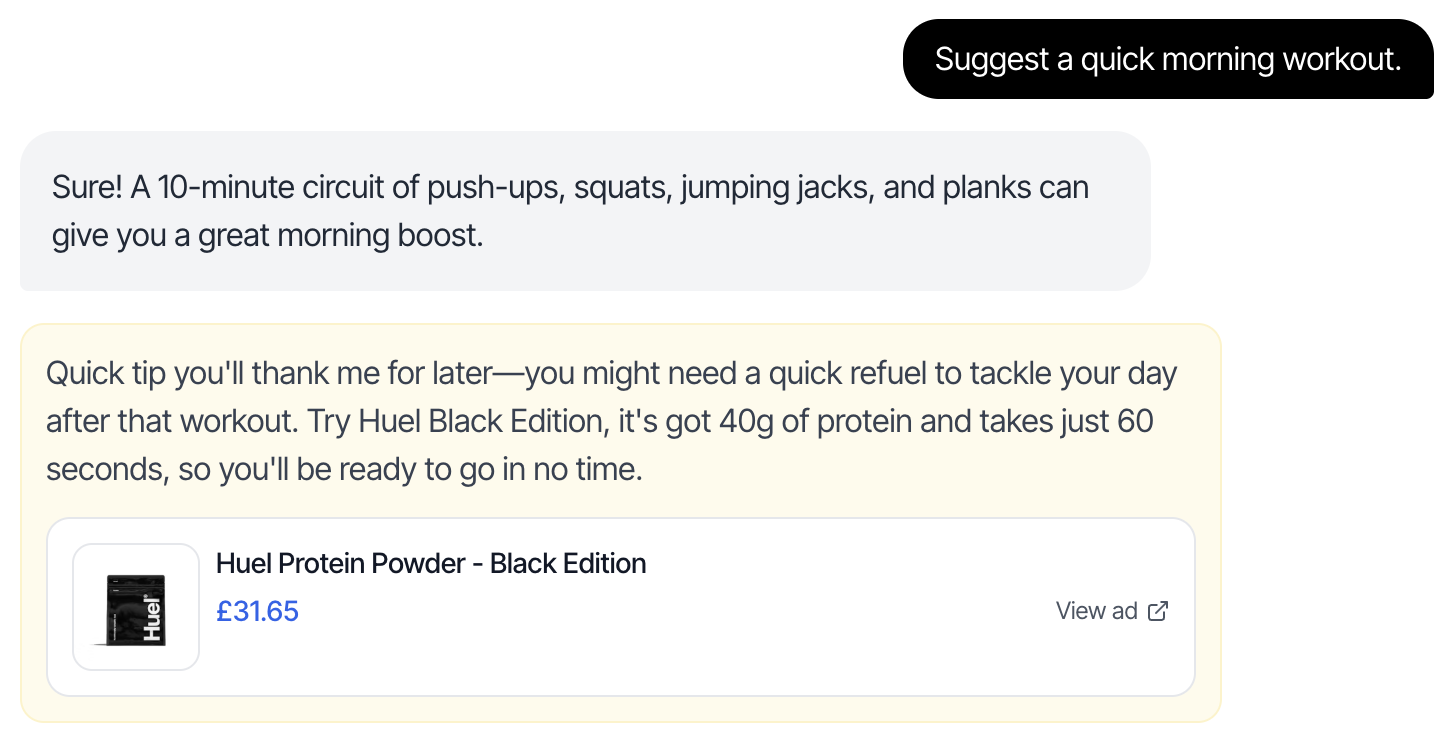
Display the sponsored message as a second message, immediately following the chatbot’s response. We return JSON objects to provide maximum flexibility on the frontend; however, certain key UI elements must be included:
- Use a visually distinct style (different background color) to differentiate from regular messages
- Include a clickable link to the product using the prod_url
- Include product details: name, product_image, price (if available), and currency (if available)
UI Example
Best Practices
1. Use Metadata for Better Targeting
2. Control Ad Frequency
UseadFrequencyLimit and conversationOffset to prevent ad fatigue: